In Counter-Strike 2, every frame counts. To win, you need not just skill, but smooth visuals and the best performance from your PC. The CS.MONEY Blog explains what settings you should use in the NVIDIA Control Panel to get the most out of your computer.
Want to get the most not only of your PC, but from the game as well? Grab some flashy skins! Where to find them at low prices? Of course, on CS.MONEY!

What is the NVIDIA Control Panel and where to find it?
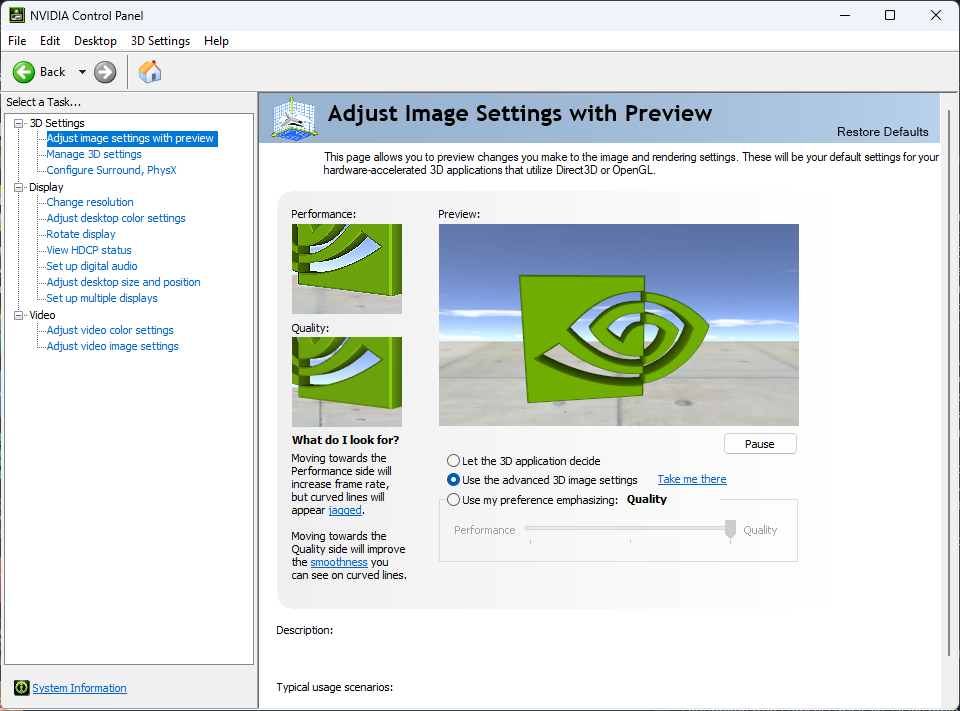
The NVIDIA Control Panel is a program that comes with your video card drivers. So if you own an NVIDIA graphics card, this app should already be on your computer.
This panel has a bunch of features, but today we’re only interested in one — manual GPU settings. You can fine-tune your video card however you want, even create custom settings for each game. The cool part? These changes are fully legal — no VAC bans or any issues.
How to open the NVIDIA Control Panel?

You can open it in just a couple of clicks:
- Right-click anywhere on your desktop;
- In the dropdown menu, find NVIDIA Control Panel (in some systems it might be named differently).
- Click that option.
The settings window will pop up. If you don’t see it, there could be a few reasons. Maybe you have an AMD card instead — in that case, you’ll see “AMD Radeon Settings” in the menu, and this guide won’t help you.
Another reason could be a missing or broken install. Try doing a clean reinstallation of your GPU drivers — that should bring the Control Panel back.
How to open NVIDIA settings for CS2
Once the NVIDIA Control Panel is open, look at the list on the left side. Select Manage 3D Settings, then go to the Program Settings tab. In the list of programs, find CS2.
If you don’t see it, hit Add and point it to the CS2 executable. The default path is something like:
\steamapps\common\Counter-Strike Global Offensive\game\bin\win64\cs2
Now you’re ready to tweak your settings.
Best NVIDIA settings for CS2
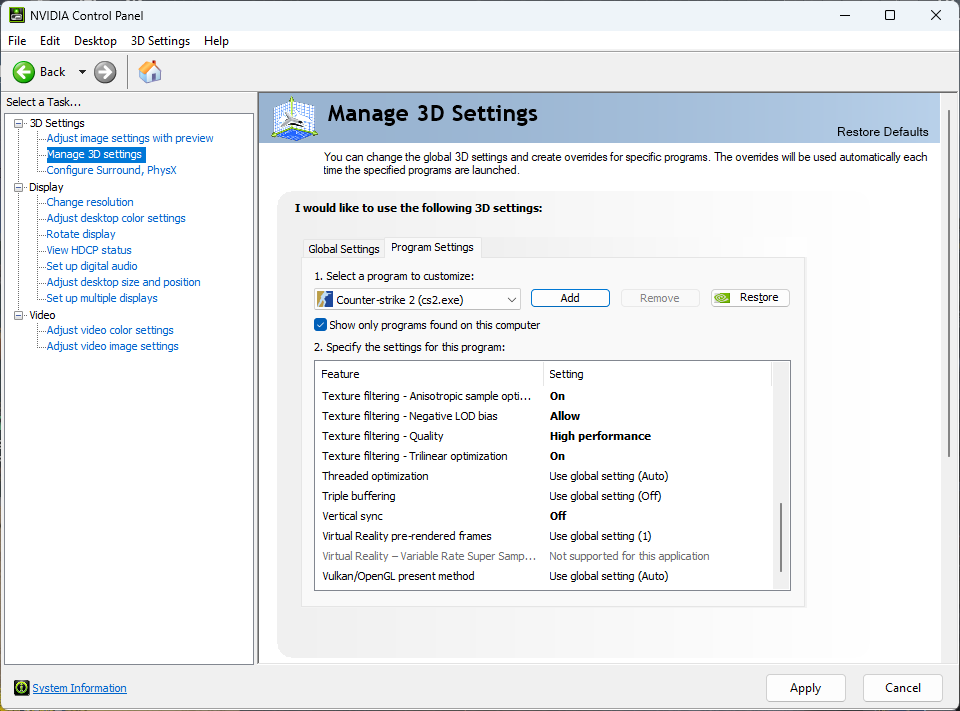
When you open CS2 settings in the NVIDIA panel, you’ll see a big list of options. Don’t worry — here’s exactly what to change:
- Power management mode – Prefer maximum performance
- Texture Filtering – Quality – High performance
- Texture Filtering – Anisotropic sample optimization – On
- Texture Filtering – Negative LOD bias – Allow
- Texture Filtering – Trilinear optimization – On
- Vertical Sync (V-Sync) – Off (for lower input lag)
- Anti-aliasing (FXAA / Transparency / Gamma correction) – Turn everything off
These changes can boost your frame rate. If your GPU is the bottleneck, this could give you dozens of extra FPS.
Settings for weak PCs
CS2 can run even on old computers, but without tweaking, you’ll probably face stutters and low FPS. So besides NVIDIA panel settings, open CS2 itself and adjust in-game options. You can also check out our full guide with the best CS2 settings.
Pro player settings
Pros always aim for max performance. For example, donk uses a low resolution — 1280×960 — with a stretched screen. You can try those settings too, but the best option is to fine-tune your setup based on your gear and playstyle.
NVIDIA vs AMD — which is better for CS2?
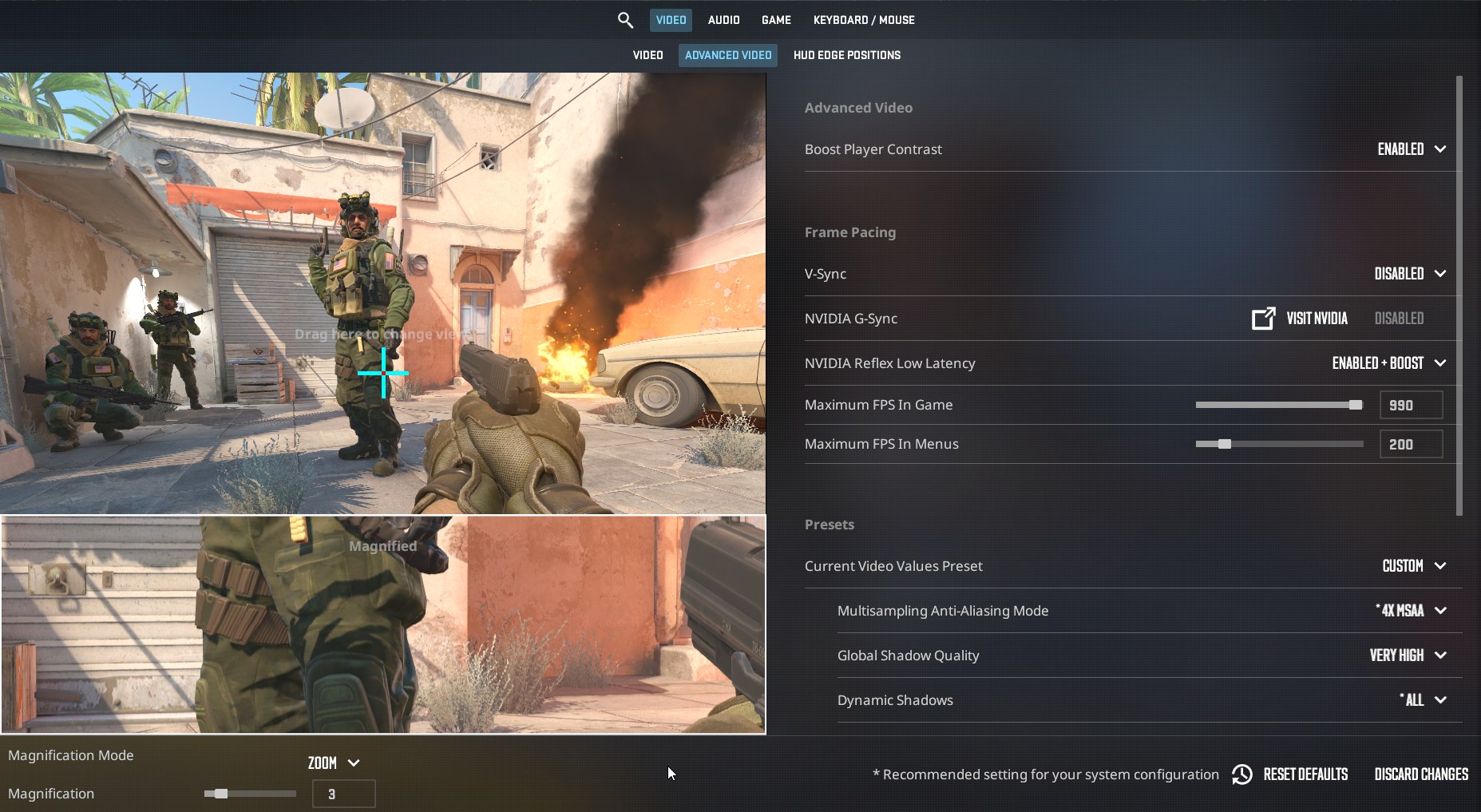
AMD cards work fine with CS2, but NVIDIA is still the top choice for competitive gaming. The key reason is NVIDIA Reflex — it reduces input lag between pressing a key and seeing it happen on screen. So if you want the highest FPS and smooth input, go with NVIDIA.
Of course, it’s not just the graphics card that matters — your CPU does too. We’ve already looked into what’s more important for CS2: CPU or GPU. Check out that guide to see where your PC might be holding you back.